Weight-Loss Transformation Thumbnails That Tell the Real Story
Turn progress updates, before-and-after reflections, meal-prep videos, and fitness check-ins into custom YouTube-style thumbnails using your own photos and exact wording.
- personYour face
- add_photo_alternateYour source images
- edit_notePlain-language edits
Make transformation content recognizable at a glance
Weight-loss transformation videos need more than a generic fitness image. A strong thumbnail can frame the specific moment: a check-in, a habit change, a milestone, a realistic setback, or a conversation with a coach. Thumbnail.AI helps you build around your own face and source photos, then refine the composition, emotional tone, and short headline with plain-language instructions. Keep the visual honest, make the milestone clear, and give viewers a reason to understand what changed.
Built for creators documenting their own health journey, fitness and wellness channels, weight-loss coaches, and accountability communities.
Three thumbnail ideas for weight-loss transformation
Each example explores a different visual direction and can be adapted with your own face, images, wording, and brand.
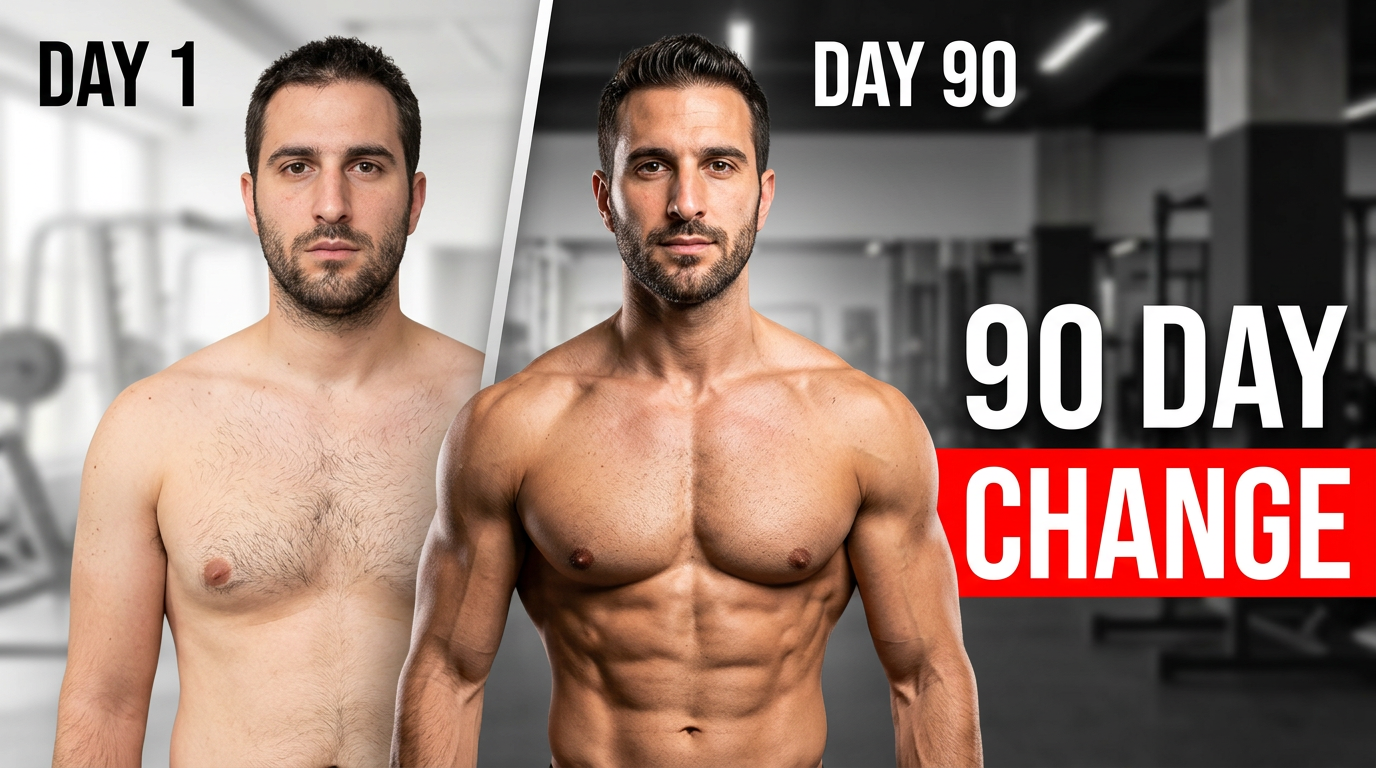
Milestone comparison
Frame a clear progress milestone with the creator’s own imagery.
See the visual approach
Create a bold side-by-side composition featuring the supplied male creator in two distinct progress moments. Use a natural earlier image on the left and a confident current image on the right, with a subtle visual transition between them. Include a bright gym or home-workout environment, clean high contrast, and strong focus on the creator’s face and upper body. Keep the mood energetic but authentic.
Make a thumbnail like this →
Current check-in
Make a recurring check-in easy to recognize in a video feed.
See the visual approach
Feature the supplied female creator in a bright, realistic home kitchen holding a small journal or tracking notebook. Use a close, expressive portrait with a calm, open expression, softly blurred meal-prep containers in the background, and a clean area for a short headline. Emphasize an honest personal update rather than a dramatic comparison.
Make a thumbnail like this →
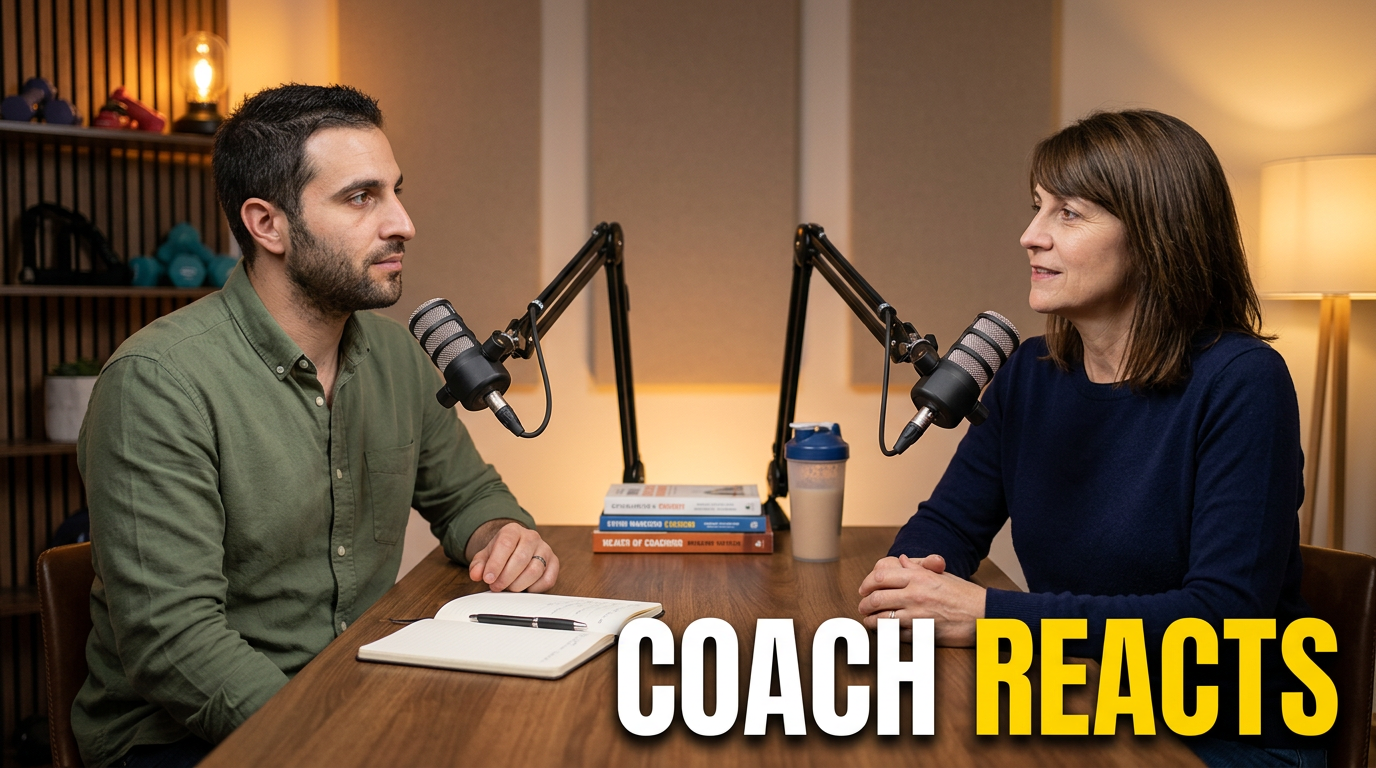
Coaching conversation
Use two faces to signal a practical accountability conversation.
See the visual approach
Create a warm two-person conversation composition using the supplied creator and coach source photos. Place them facing slightly toward each other in a tidy coaching or studio setting, with a notebook and simple fitness or nutrition props visible but secondary. Give the creator a thoughtful expression and the coach an attentive, supportive expression. Use balanced lighting, clear facial separation, and an inviting expert-discussion mood.
Make a thumbnail like this →
These examples are starting points. Results vary based on your images, wording, and creative direction.
Thumbnail ideas for transformation content
Match the thumbnail to the stage of the journey and the promise of the video—not a one-size-fits-all fitness look.
- Before-and-after progress updates
- Weekly or monthly check-ins
- Habit and routine changes
- Meal-prep and grocery content
- Workout consistency updates
- Plateaus, setbacks, and resets
- Coach conversations and accountability videos
- Sustainable lifestyle reflections
A simple workflow you can reuse
-
1
Start with the real milestone
Upload the face photo, progress photo, workout image, meal photo, or coaching image that belongs to the video. Describe whether the focus is a comparison, a current update, or a lesson learned.
-
2
Set a clear emotional direction
Ask for an encouraging, candid, reflective, energetic, or no-hype look. Specify what should stand out, such as a changed expression, a calendar, a meal container, gym equipment, or a side-by-side timeline.
-
3
Refine the wording and layout
Add a short headline in your exact words, then revise the thumbnail direction until the subject, contrast, crop, and emphasis fit the video’s message.
Frequently asked questions
Answers for building a useful, repeatable thumbnail workflow—not just generating one image.
Browse all thumbnail makers →
What makes a weight-loss transformation thumbnail feel credible?
add
Use real source photos, a specific moment from the video, and restrained wording. A current check-in, routine change, or honest reflection is usually clearer than an exaggerated promise or a heavily edited body comparison.
Can I create before-and-after thumbnails with my own photos?
add
Yes. Upload the two source images and ask for a side-by-side, timeline, or then-versus-now composition. You can direct the crop, background treatment, facial expression, and which image receives more emphasis.
What text works well on a transformation thumbnail?
add
Keep it short and tied to the video’s actual focus. Milestone timing, a check-in label, a routine update, or a candid takeaway can work well. Use the title and description for the fuller context.
Can I make a thumbnail about a plateau or setback without making it look negative?
add
Yes. Describe the tone you want, such as calm, honest, determined, or reflective. A close-up expression, a simple progress reference, and an uncluttered layout can communicate a difficult moment without turning it into clickbait.
Can a coach and client appear in the same thumbnail?
add
Yes. Upload both relevant source images and request a conversation, review, or accountability composition. Make sure the video context supports including both people and that you have permission to use each image.
Create a transformation thumbnail that feels like your story
Upload your photos, add your exact headline, and direct the visual in plain language with Thumbnail.AI.
Create a thumbnail in Thumbnail.AI