Thumbnails that make your stream uploads look unmissable
Turn gameplay captures, webcam shots, reaction faces, and a clear video hook into custom YouTube-style thumbnails for your channel.
- personYour face
- add_photo_alternateYour source images
- edit_notePlain-language edits
Make every stream upload easier to recognize at a glance
Stream content moves quickly, but your thumbnail still has to communicate the moment before someone reads the title. Thumbnail.AI helps streamers build custom visuals around the actual hook: a clutch win, a failed challenge, a heated reaction, a new setup, a raid, or a memorable live moment. Upload your face and source images, choose the wording you want shown, and describe the energy you need in plain language. Revise the composition until the thumbnail feels like your channel—not a generic gaming template.
Built for Twitch and YouTube streamers posting highlights, VOD recaps, challenge runs, reaction clips, gaming updates, and creator-focused videos.
Three thumbnail ideas for streamers
Each example explores a different visual direction and can be adapted with your own face, images, wording, and brand.
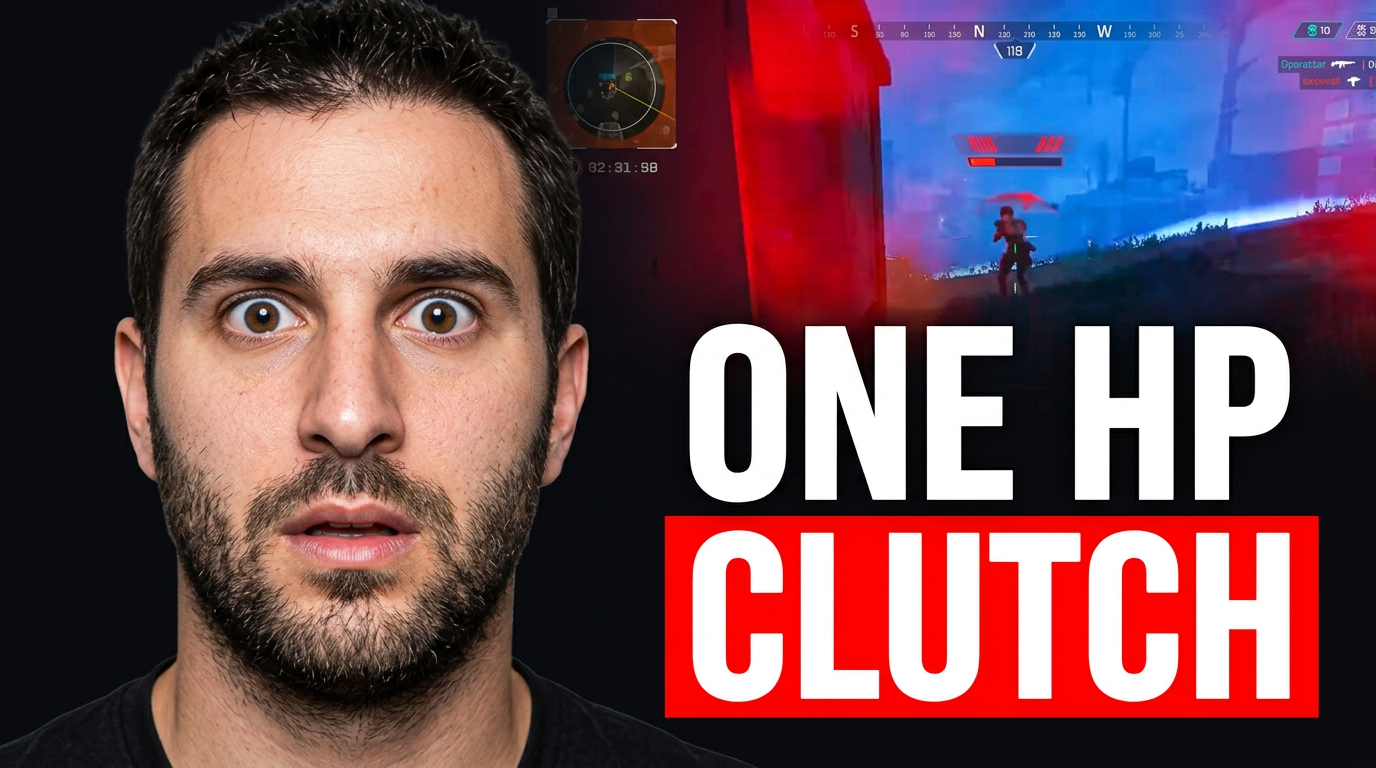
Ranked clutch highlight
Put the pressure of a close match front and center.
See the visual approach
Close-up of a male streamer with an intense, wide-eyed reaction on the left, dramatic battle royale final-circle gameplay source image on the right, low-health visual cues and a distant opponent in the background, strong red and blue contrast, diagonal action composition, high-stakes competitive mood, streamer face and gameplay frame as the primary emphasis.
Make a thumbnail like this →
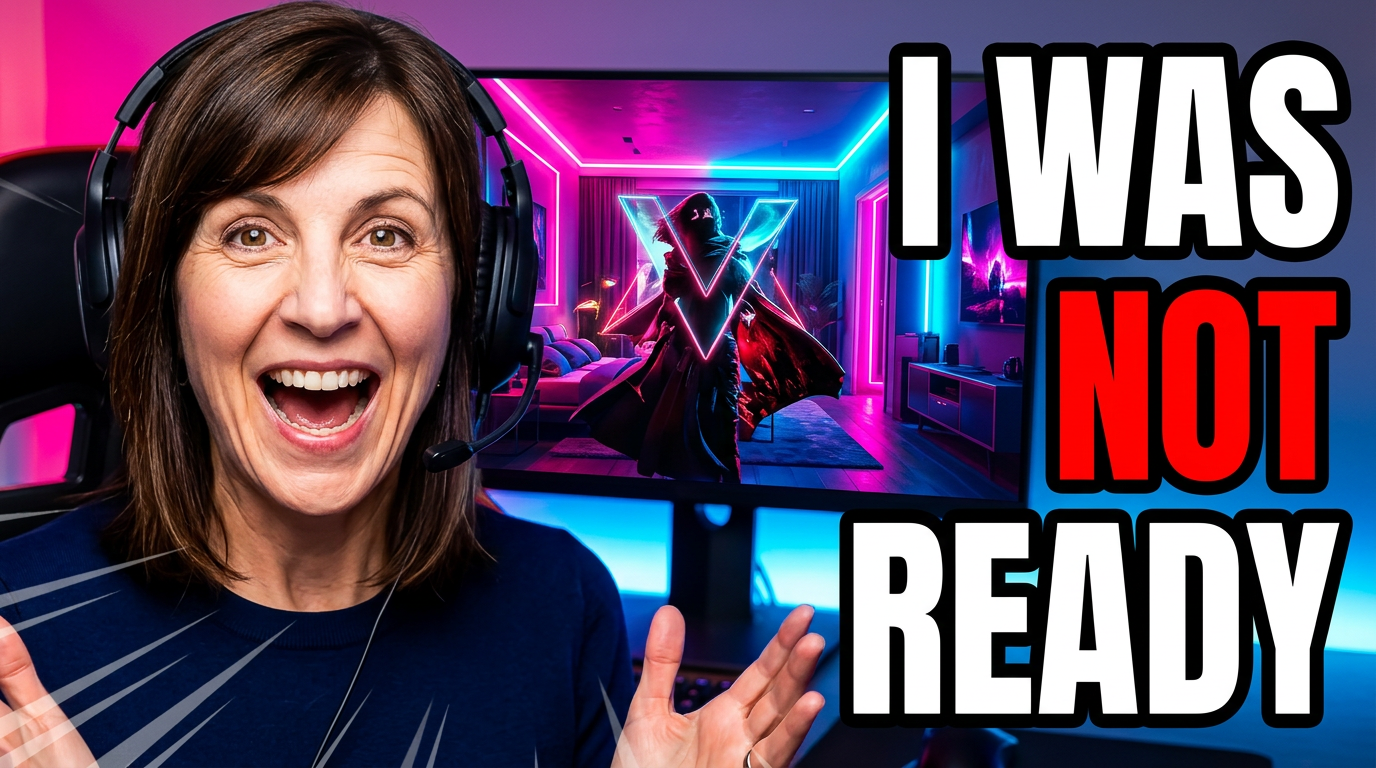
New game reaction
Pair a genuine reaction with the reveal that caused it.
See the visual approach
Female streamer in the foreground with a shocked laughing reaction, game reveal artwork or gameplay source material visible on a large monitor behind her, glowing neon room lighting, crisp separation between subject and background, expressive creator-focused composition, surprise and excitement emphasized, supplied face image and game source material retained.
Make a thumbnail like this →
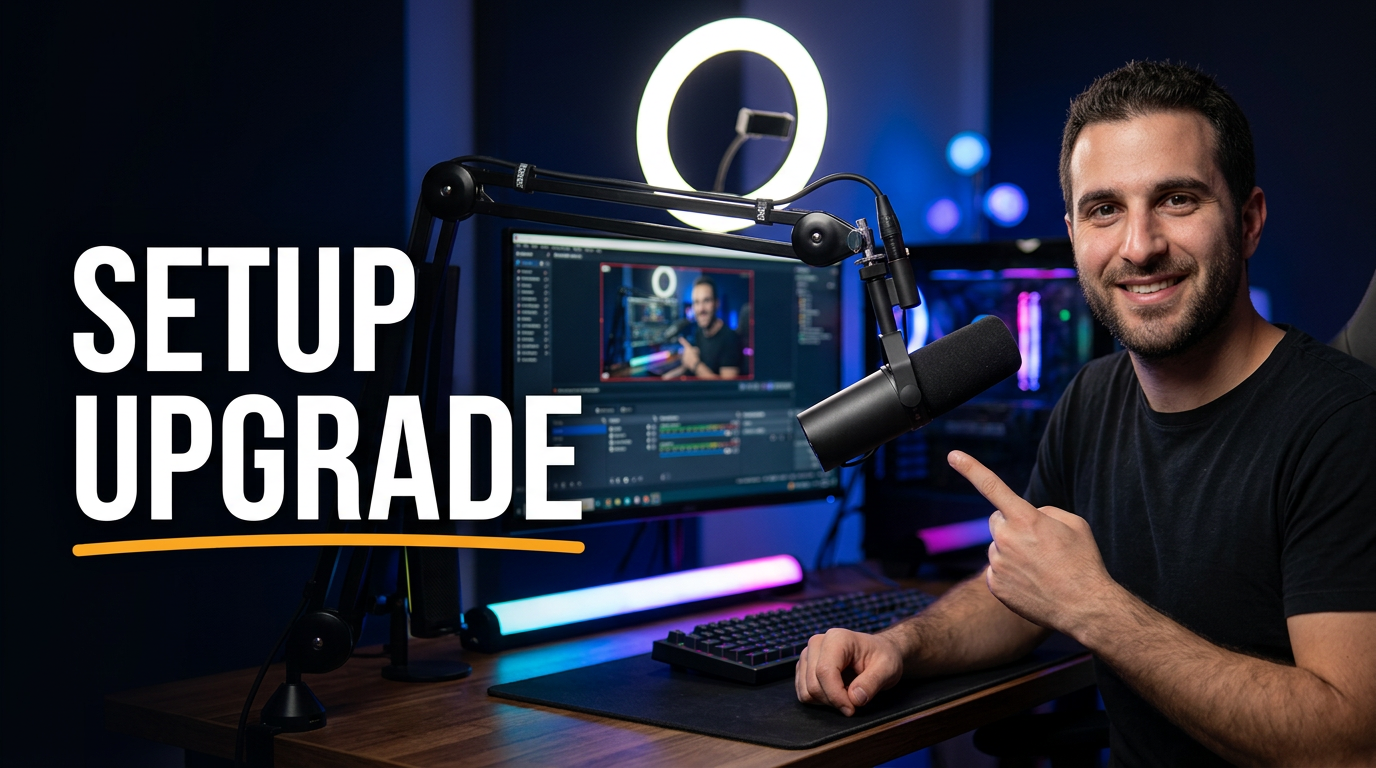
Stream setup upgrade
Make the new gear and the creator behind it equally clear.
See the visual approach
Male streamer seated at a polished streaming desk, gesturing toward a prominent microphone, camera, monitor, and ambient lighting setup, clean room environment with colorful practical lights, supplied face image clearly visible, equipment arranged as the central visual story, premium but approachable creator-studio mood.
Make a thumbnail like this →
These examples are starting points. Results vary based on your images, wording, and creative direction.
Thumbnail ideas for streamer content
Match the visual emphasis to what viewers will get from the video, whether that is gameplay stakes, a live reaction, a community moment, or an on-stream milestone.
- Ranked-match clutches, wins, and painful losses
- Challenge runs, speedruns, and impossible objectives
- Funny stream highlights and chaotic teammate moments
- Game launches, patches, seasonal updates, and first impressions
- Reaction videos, watch-alongs, and commentary uploads
- Setup upgrades, desk tours, and streaming gear reviews
- Subscriber milestones, charity streams, and community events
- VOD recaps and best-moments compilations
A simple workflow you can reuse
-
1
Start with the stream moment
Upload a sharp webcam image, gameplay screenshot, game art, stream still, or other source material that shows the actual moment behind the upload.
-
2
State the hook in your own words
Tell Thumbnail.AI what happened and what should dominate the frame—for example, a final-circle clutch, an unbelievable fail, or a dramatic reaction to a new patch.
-
3
Set the visible wording
Add short, readable text that supports the title without trying to explain the whole stream. Keep the wording focused on the stakes, result, or surprise.
Frequently asked questions
Answers for building a useful, repeatable thumbnail workflow—not just generating one image.
Browse all thumbnail makers →
Can I use my own webcam face and gameplay screenshot?
add
Yes. Upload your webcam photo, gameplay capture, game-related source image, or existing channel asset so the thumbnail can be built around the people and moments viewers recognize.
What wording works best on a streamer thumbnail?
add
Use a short phrase that sharpens the hook, such as the outcome, challenge, or reaction. Let the video title carry the extra context; the thumbnail wording should remain easy to scan on a phone.
How should I thumbnail a VOD recap versus a single highlight?
add
A single highlight should center on one high-stakes frame and your reaction. For a recap, use one defining moment from the stream and make the text signal that viewers are getting the standout portion rather than the full broadcast.
Can I make thumbnails for non-gaming streams?
add
Yes. Use your face and relevant source material for IRL, music, art, cooking, just-chatting, tech, or community content. Describe the key moment, setting, and mood so the composition fits the stream format.
How do I keep my thumbnails consistent across different games?
add
Keep recurring elements stable, such as your face treatment, framing, color direction, and text placement, while changing the gameplay image and focal moment for each upload. This preserves channel recognition without making every video look identical.
Create your next stream thumbnail
Bring your gameplay, webcam shots, and strongest stream moment into Thumbnail.AI, then refine the image and wording until it fits your channel.
Create a thumbnail in Thumbnail.AI