Podcast thumbnails that make the conversation feel unmissable
Turn your show artwork, host photos, guest images, and strongest talking point into a YouTube-ready thumbnail with clear direction and easy revisions.
- personYour face
- add_photo_alternateYour source images
- edit_notePlain-language edits
Create podcast thumbnails with the people and topic front and center
A podcast thumbnail has to communicate the guest, the tension, and the reason to press play before a viewer reads the title. Thumbnail.AI helps you build custom visuals around your actual host and guest photos, studio imagery, brand colors, and exact on-image wording. Describe the mood you want—thoughtful, provocative, funny, urgent, or polished—then revise the composition and emphasis in plain language until it fits the conversation.
Built for solo hosts, interview shows, co-hosted podcasts, video podcast teams, and producers preparing clips or full-length conversations for YouTube.
Three thumbnail ideas for podcasters
Each example explores a different visual direction and can be adapted with your own face, images, wording, and brand.
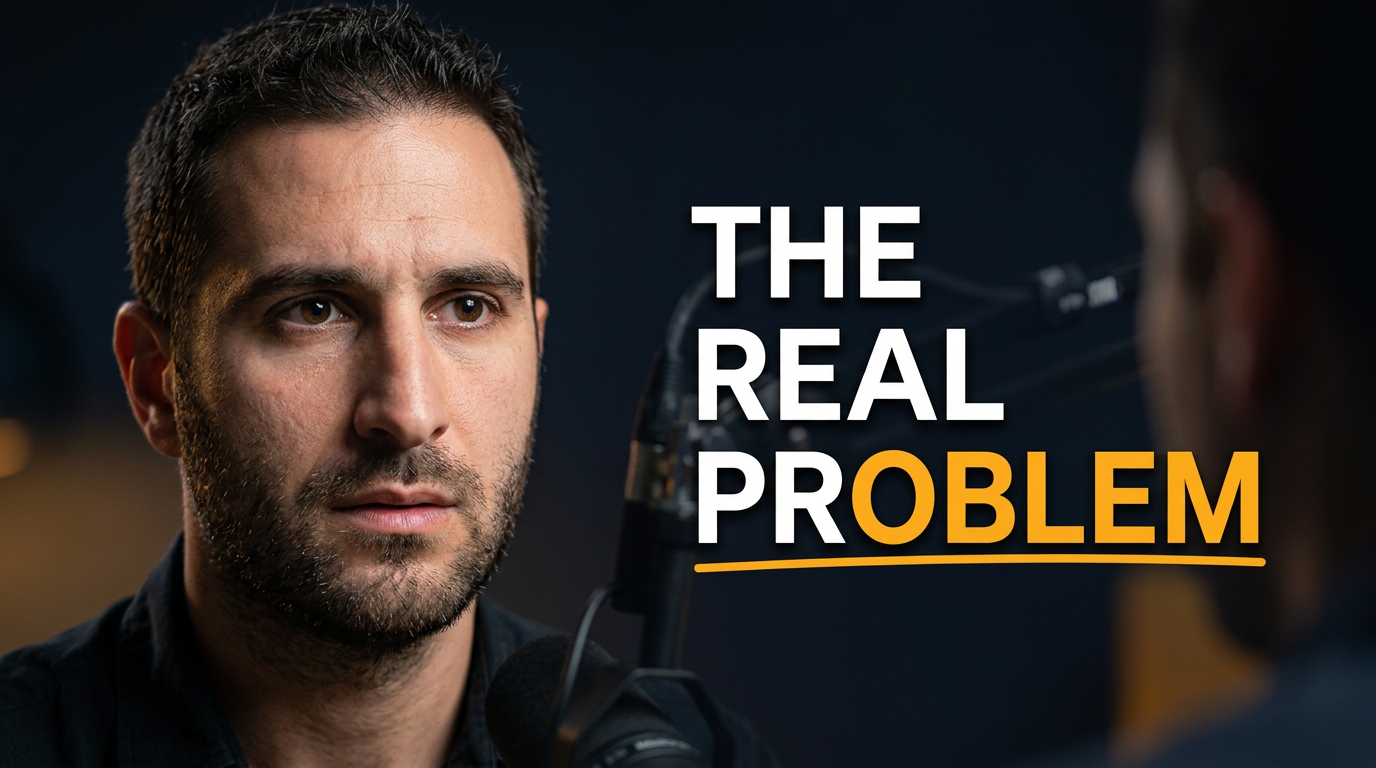
Expert interview with a surprising insight
Put the expert and the central tension in the same frame.
See the visual approach
Two men in a modern warmly lit podcast studio: a concerned host in the foreground looking toward a composed expert guest, close-up faces on opposite sides, microphones subtly visible, dark navy and amber background, high contrast, serious investigative mood, strong empty central space for short wording, use uploaded host and guest source photos.
Make a thumbnail like this →
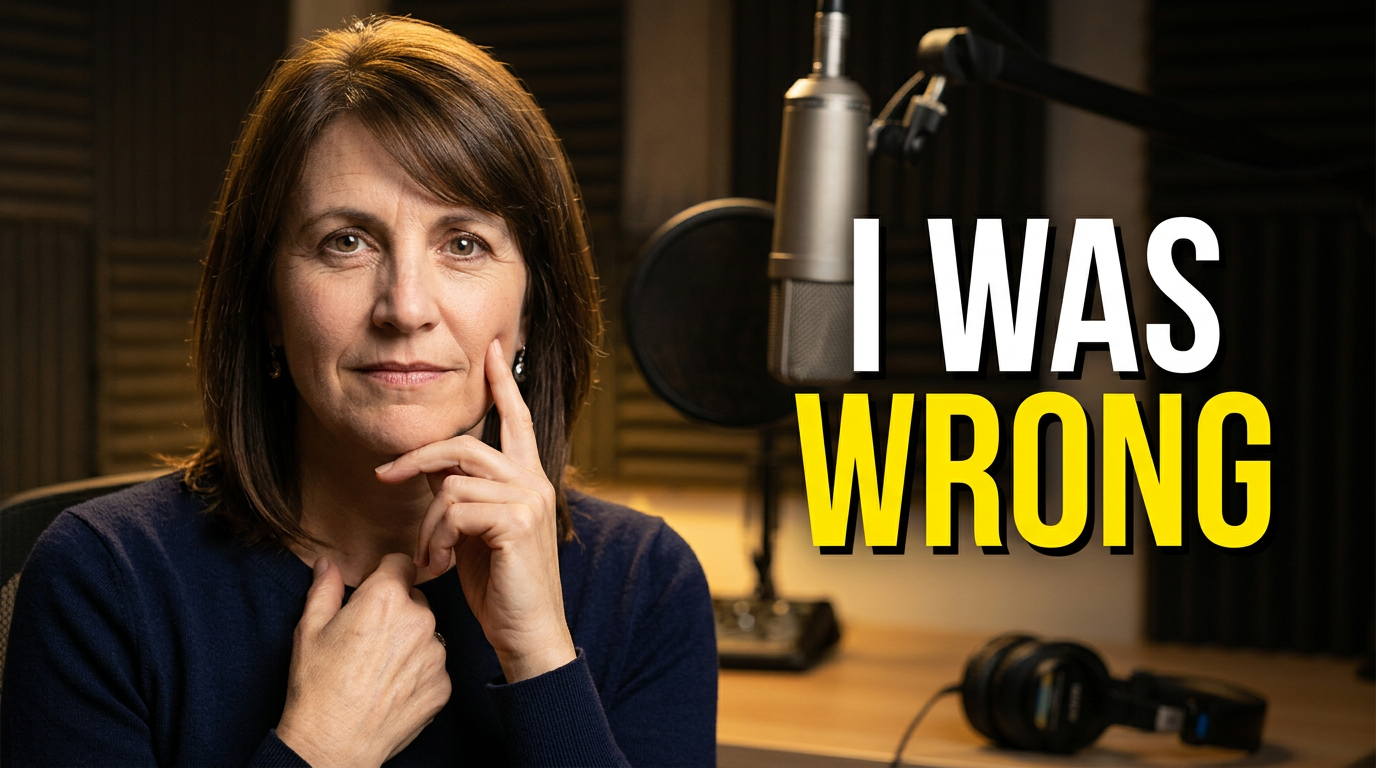
Solo host’s personal perspective
Use an expressive host portrait for a candid solo conversation.
See the visual approach
Female podcast host in a close-up portrait, direct eye contact and reflective expression, softly blurred recording booth behind her, headphones and microphone visible but secondary, deep charcoal background with a warm spotlight, intimate honest mood, face emphasized on one side with clean negative space for short wording, use uploaded host source photo.
Make a thumbnail like this →
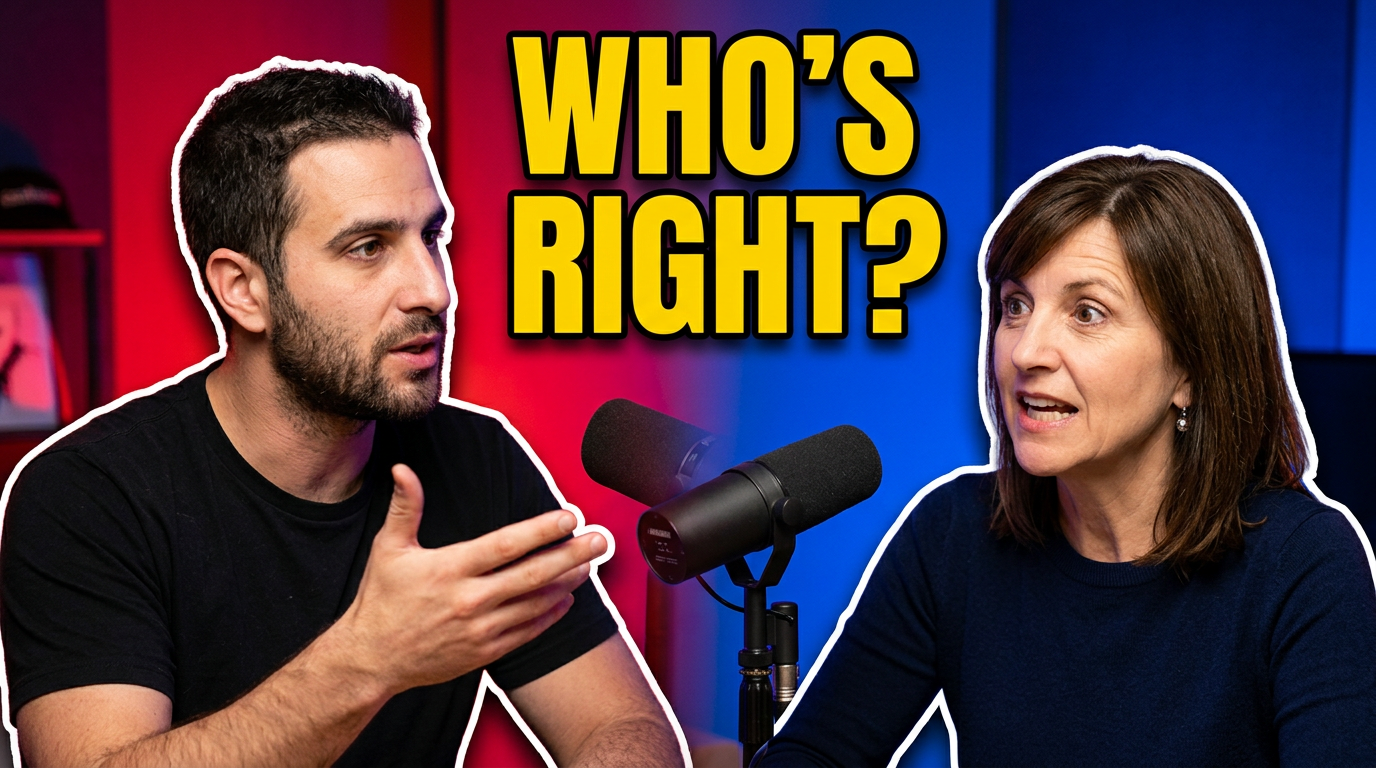
Co-host debate or lively conversation
Make the disagreement instantly legible with a face-to-face composition.
See the visual approach
Two podcast co-hosts seated facing one another in a vibrant studio, expressive debate gestures and direct eye contact, one person leaning forward and the other responding, microphones between them, bold split lighting with contrasting colors, energetic conversational mood, both faces large and equally prominent, clean space between them for short wording, use uploaded co-host source photos.
Make a thumbnail like this →
These examples are starting points. Results vary based on your images, wording, and creative direction.
What strong podcast thumbnails can highlight
Use the visual to give each conversation a distinct hook while keeping the show recognizable from upload to upload.
- Guest reveal and recognizable guest photo
- A sharp question, claim, or debate from the conversation
- Host reaction or a host-and-guest visual contrast
- Business, culture, wellness, comedy, news, or creator-show branding
- Remote interview screenshots or in-studio photography
- Short clips, full conversations, announcement videos, and season launches
- Consistent color, lighting, and layout choices across the channel
- A readable visual hierarchy for viewers browsing on small screens
A simple workflow you can reuse
-
1
Add the source material that belongs to your show
Upload host and guest photos, show artwork, logos, studio shots, or a video-frame reference. Use the people your audience expects to see rather than relying on generic imagery.
-
2
Set the conversation’s visual hook
Tell Thumbnail.AI what the video is about and what should feel most important: a surprising confession, expert insight, disagreement, practical takeaway, or timely reaction.
-
3
Choose the exact words viewers should see
Keep the on-image line short and specific. Add your preferred wording exactly, then let the composition support it with face placement, contrast, and a fitting background.
Frequently asked questions
Answers for building a useful, repeatable thumbnail workflow—not just generating one image.
Browse all thumbnail makers →
What should a podcast thumbnail include?
add
Most podcast thumbnails work best with a recognizable host or guest, a single clear emotional or topical hook, and a short line of on-image wording. Show branding can support the design, but it should not compete with the main conversation.
Can I use photos of my guest and host?
add
Yes. Upload host and guest source photos so the thumbnail can be built around the actual people in the conversation. For co-hosted or interview videos, you can direct the layout to feature both people.
How is a podcast clip thumbnail different from a full conversation thumbnail?
add
A clip thumbnail can focus tightly on one quote, reaction, or idea from a specific moment. A full conversation thumbnail usually introduces the guest and the broader subject. In both cases, keep the visual promise aligned with the video title and content.
Can I keep a consistent look across my podcast channel?
add
Yes. Reuse your show artwork, color palette, host imagery, layout preferences, and visual direction. You can then change the guest, topic, and short wording so each upload remains distinct while the channel feels cohesive.
What wording works on a podcast thumbnail?
add
Use a brief phrase that creates context or tension, such as a direct question, a contrarian claim, or a concise takeaway. Avoid trying to summarize the entire conversation; the title and description can handle the detail.
Make the next conversation visually clear
Bring in your host and guest photos, set the exact wording, and shape a thumbnail around the moment people need to see.
Create a thumbnail in Thumbnail.AI