Landscaping thumbnails that make the transformation obvious

Create custom YouTube-style thumbnails for lawn makeovers, patios, planting plans, equipment videos, and seasonal property care—using your own project photos, crew images, and exact words.

  • Your face
  • Your source images
  • Plain-language edits
Landscaper standing beside a finished paver patio shown against the worn backyard it replaced

Make every landscaping video easy to understand at a glance

Landscaping content is visual proof of skilled work. Thumbnail.AI helps you turn before-and-after photos, finished outdoor spaces, site footage, and crew portraits into focused thumbnails that show the project, the result, and the reason to watch. Upload the images you want to feature, choose the wording, and describe the look in plain language.

Built for landscape contractors, lawn-care companies, hardscape installers, garden designers, and outdoor-property creators who want visuals that reflect real jobs and recognizable local expertise.

Three thumbnail ideas for landscapers

Each example explores a different visual direction and can be adapted with your own face, images, wording, and brand.

Landscaper standing beside a finished paver patio shown against the worn backyard it replaced

Backyard patio transformation

Show the finished hardscape and the scale of the transformation in one frame.

See the visual approach

Split-view composition using supplied backyard project photos: worn, patchy backyard on the left and completed paver patio with seating area on the right. Include the supplied male landscaper standing near the finished patio, gesturing toward the result. Warm afternoon light, clean property-improvement presentation, strong emphasis on the new pavers and dramatic contrast.

Make a thumbnail like this
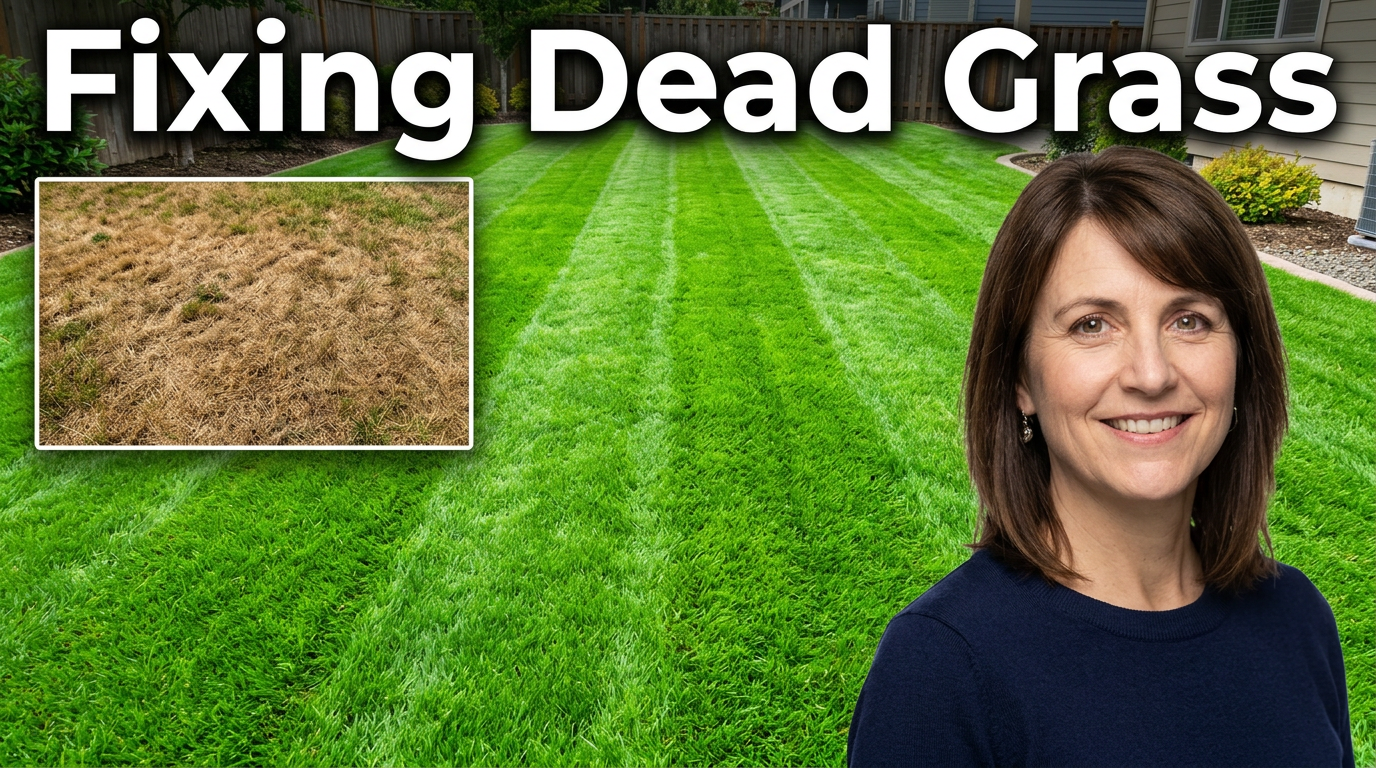
Female lawn-care professional reacting beside a lush green renovated lawn and a dry brown lawn inset

Lawn renovation result

Make the healthy lawn the visual payoff while preserving the problem viewers want solved.

See the visual approach

Use supplied lawn photos in a bold comparison layout, with a dry brown lawn as a smaller contrasting inset and a dense striped green lawn filling most of the frame. Include the supplied female lawn-care professional in the foreground with an expressive, confident reaction. Bright natural daylight, crisp green color emphasis, practical residential setting, focus on the lawn recovery outcome.

Make a thumbnail like this
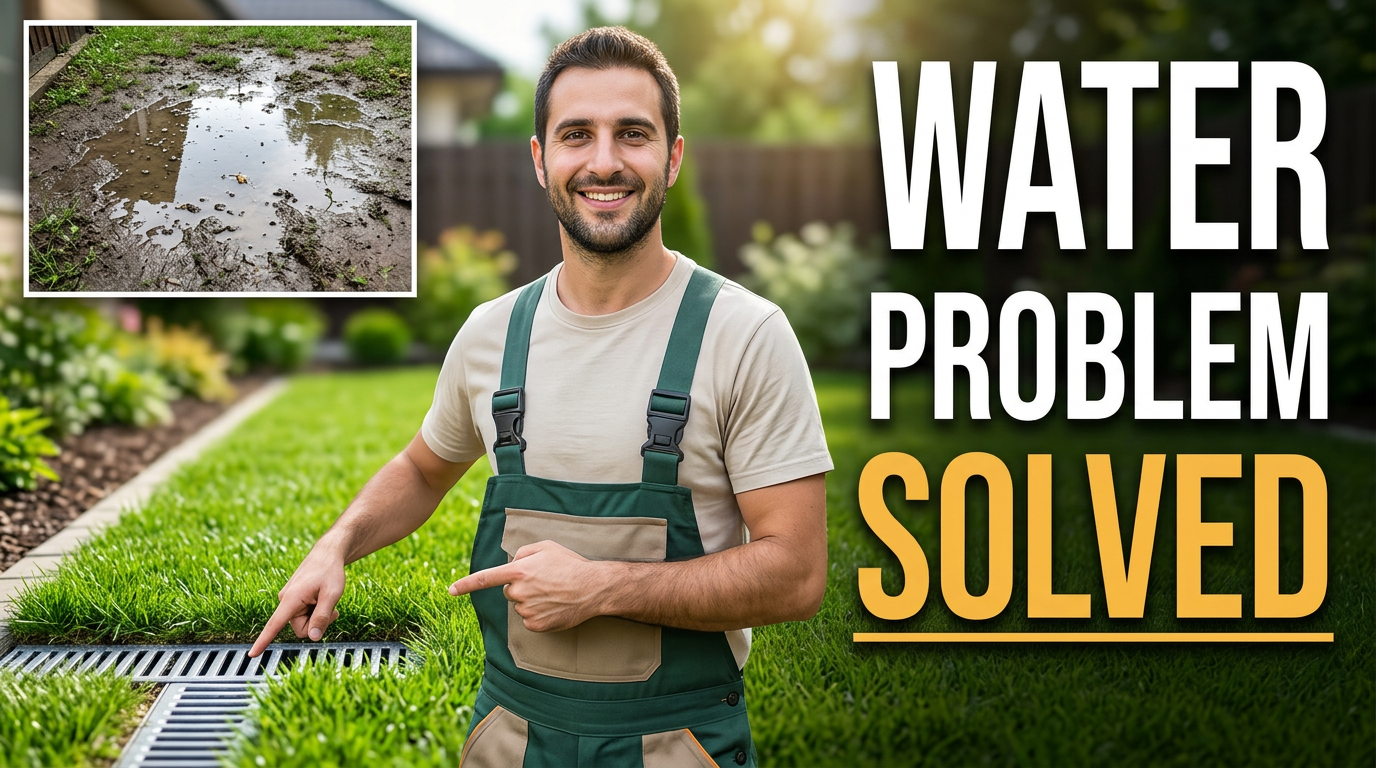
Landscaper pointing toward a dry repaired yard area with a subtle inset of standing water before the repair

Drainage repair project

Connect the visible water issue to the clean, usable yard after the repair.

See the visual approach

Feature the supplied male landscaper in a residential yard, pointing toward a clean repaired drainage area and healthy turf. Add a smaller supplied before-photo inset showing standing water near the same problem area. Overcast-to-clear visual mood, credible jobsite detail, strong emphasis on the dry finished yard and the resolved drainage issue.

Make a thumbnail like this

These examples are starting points. Results vary based on your images, wording, and creative direction.

Thumbnail ideas for landscaping content

Use a clear visual angle that matches the work shown in your video and gives viewers an immediate reason to click.

  • Before-and-after yard transformations
  • Paver patio and retaining-wall installs
  • Lawn renovation and sod projects
  • Landscape design walkthroughs
  • Planting and seasonal color updates
  • Drainage, grading, and erosion fixes
  • Equipment comparisons and jobsite setups
  • Spring cleanup, fall cleanup, and winter prep

A simple workflow you can reuse

  1. 1

    Start with the strongest project image

    Upload a finished-space photo, a dramatic before image, a jobsite shot, or a crew portrait. For transformations, make the contrast between the old and new space immediately visible.

  2. 2

    State the video’s main outcome

    Add short wording that captures the job, challenge, or reveal, such as a patio transformation, dead-lawn fix, or drainage solution. Keep it readable on a phone screen.

  3. 3

    Direct the visual focus

    Tell Thumbnail.AI what should stand out: the new pavers, a clean lawn stripe, a planting bed, a retaining wall, or your reaction beside the finished project.

Frequently asked questions

Answers for building a useful, repeatable thumbnail workflow—not just generating one image.

Browse all thumbnail makers
What photos work best for landscaping thumbnails?

Finished-project photos with a clear focal point work especially well: a patio, fresh sod, structured planting bed, outdoor kitchen, wall, or sharply improved curb appeal. For a transformation video, include a recognizable before image and a strong finished view.

Can I use photos from my own landscaping jobs?

Yes. Upload your own jobsite, crew, equipment, and completed-project images so the thumbnail reflects the actual work in the video. Make sure you have permission to use any client property or recognizable person shown.

How much text should a lawn-care or landscaping thumbnail have?

Use a short, direct phrase—usually two to six words. Let the lawn, hardscape, or transformation do most of the explaining, and use text to frame the result or problem.

Can Thumbnail.AI make a before-and-after landscaping thumbnail?

Yes. Describe which source photo belongs on each side and which result should receive the strongest emphasis. A clear divider, contrasting conditions, and an obvious final reveal can make the story easy to scan.

What should I feature for a hardscape installation video?

Prioritize the completed pavers, wall, steps, fire feature, or outdoor living area. If the video is about the build process, pair the finished result with a close jobsite detail or an installer in the frame.

Can I keep my landscaping company’s branding consistent?

Yes. Provide the colors, logo treatment, and overall direction you use across your channel. You can also reuse a familiar layout approach while changing the project photo and message for each new video.
Turn your next project reveal into a clear thumbnail

Bring your best job photos, your on-camera image, and the message you want viewers to see. Thumbnail.AI helps you shape them into a custom thumbnail for your landscaping content.

Create a thumbnail in Thumbnail.AI