Thumbnails That Make Your Shopify Videos Look Worth Clicking
Create custom YouTube-style thumbnails for product launches, store-build videos, ad breakdowns, and e-commerce updates—using your own face, product photos, brand assets, and exact on-image wording.
- personYour face
- add_photo_alternateYour source images
- edit_notePlain-language edits
Made for Store Owners Who Teach, Build, and Sell on Video
E-commerce videos need to communicate the payoff before a viewer reads the title. Whether you are showing a Shopify redesign, revealing a product launch, reviewing ad creative, or explaining a sales lesson, Thumbnail.AI helps you turn your actual assets into a clear thumbnail concept. Upload your headshot, product shot, storefront screenshot, packaging, or campaign creative; then describe the direction in plain language and refine it until it fits your channel.
Useful for Shopify founders, DTC marketers, product brands, e-commerce consultants, and creators documenting the work behind an online store.
Three thumbnail ideas for e-commerce & shopify sellers
Each example explores a different visual direction and can be adapted with your own face, images, wording, and brand.
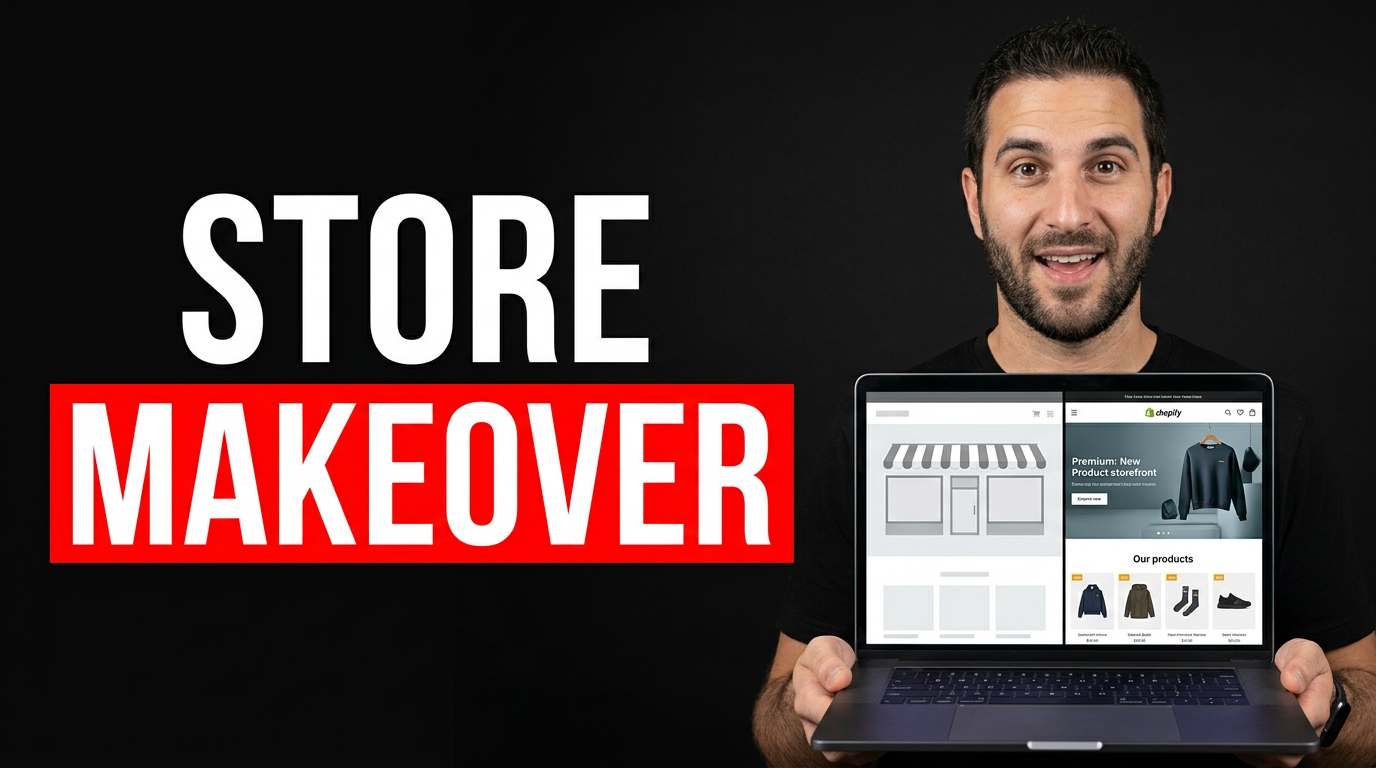
Shopify storefront redesign reveal
Show the contrast between an old store experience and a polished new storefront without crowding the frame.
See the visual approach
A confident male Shopify store owner in the foreground with an excited, approving expression, holding an open laptop angled toward camera. On the laptop, a clean premium e-commerce storefront design is visible with a product hero area. Include a subtle split visual treatment suggesting an earlier plain storefront on one side and a refined modern storefront on the other. Bright studio lighting, bold contrast, polished founder-channel composition, clear emphasis on the website transformation.
Make a thumbnail like this →
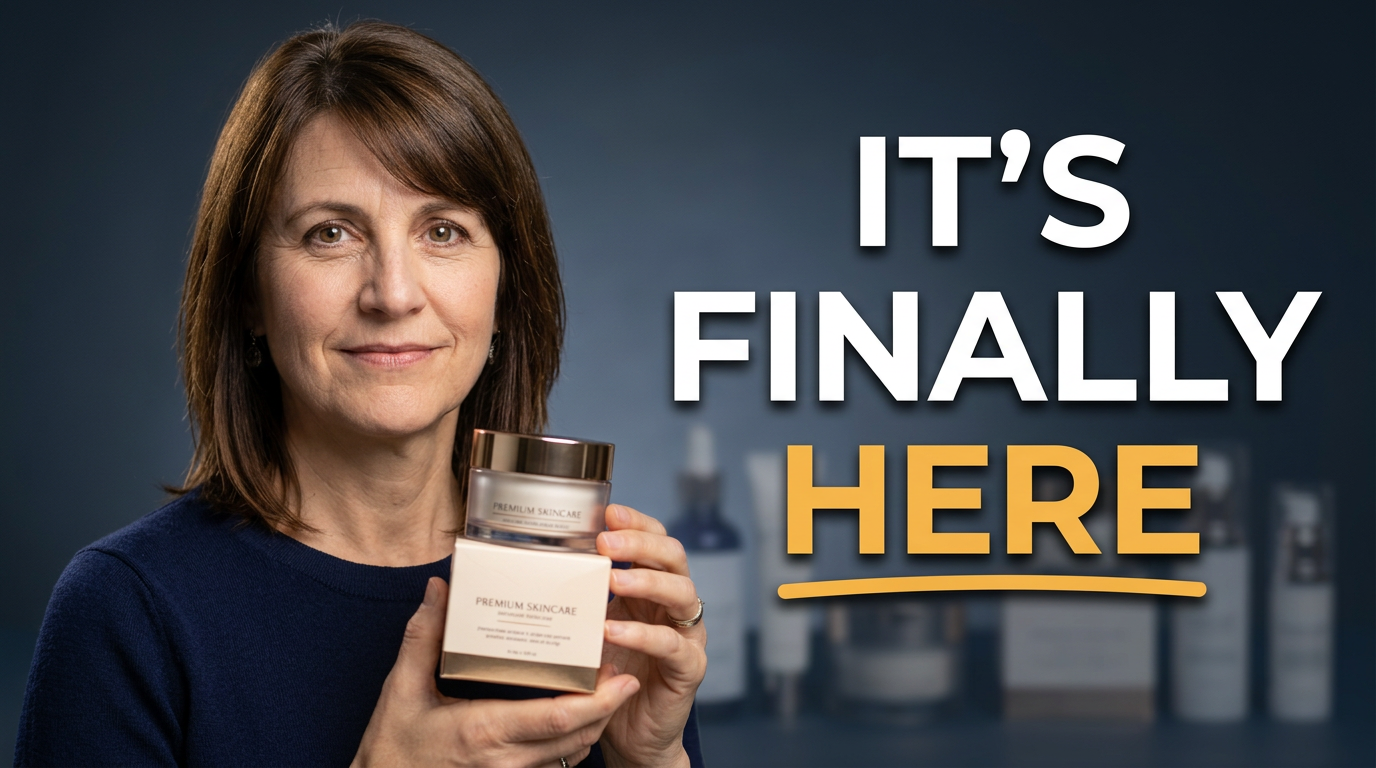
New product launch announcement
Put the new product and the founder’s launch-day reaction at the center of the frame.
See the visual approach
A female DTC founder standing in a warm product studio, holding a premium skincare jar and matching carton close to camera. A tasteful display of the same product sits softly blurred in the background. Her expression is proud and relieved, with a launch-day atmosphere. Clean brand-color backdrop, crisp product lighting, shallow depth of field, editorial product photography combined with an approachable founder portrait.
Make a thumbnail like this →
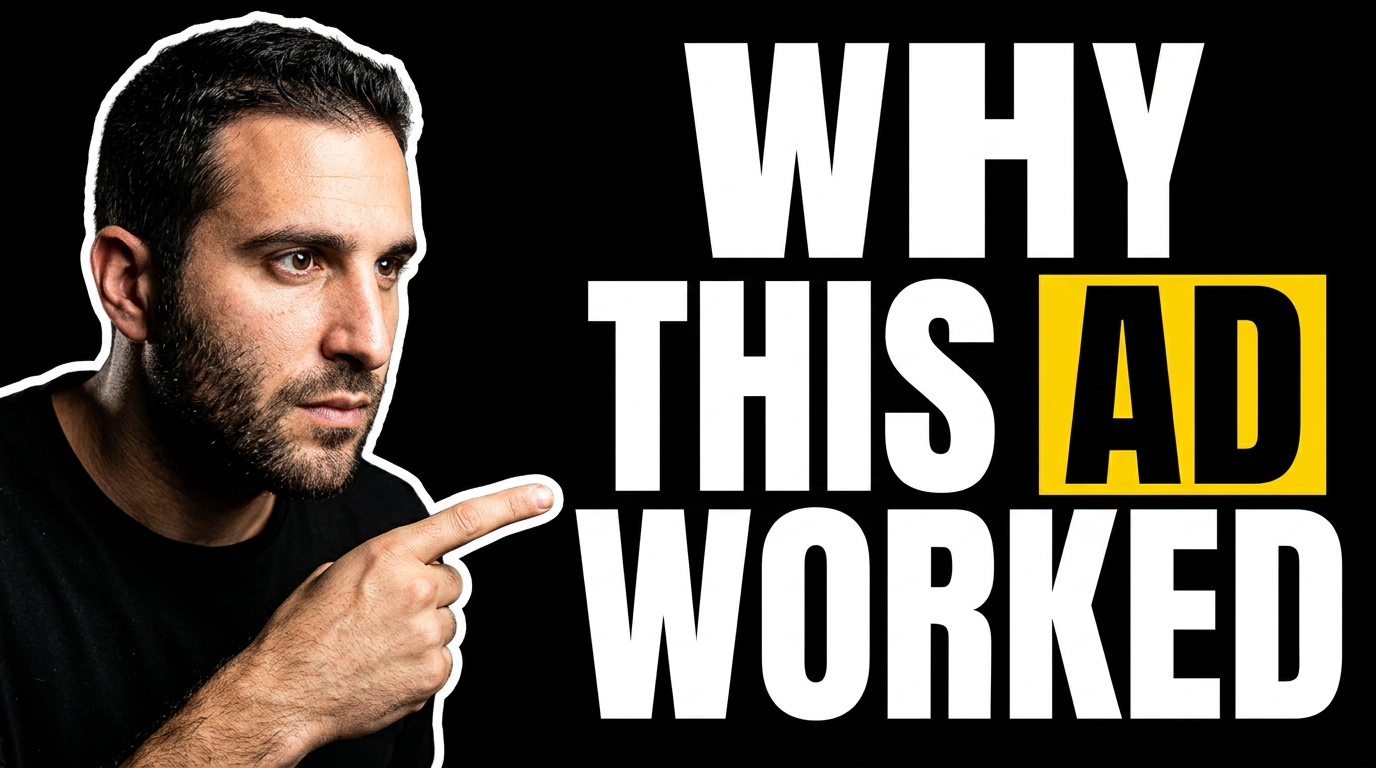
E-commerce ad creative breakdown
Frame the presenter as the analyst and make one piece of ad creative the visual proof point.
See the visual approach
A male e-commerce marketer seated at a desk, leaning forward and pointing toward a large monitor showing a single bold product advertisement layout with a featured consumer product. Use a focused analytical expression, moody creator-studio lighting, and a few understated campaign notes or creative variants in the background. Cinematic perspective, strong screen glow, visual emphasis on the contrast between the presenter and the ad creative.
Make a thumbnail like this →
These examples are starting points. Results vary based on your images, wording, and creative direction.
Thumbnail ideas for e-commerce content
Build a repeatable visual system around the video formats shoppers, founders, and marketers recognize on your channel.
- Shopify store launches and redesign reveals
- Product launch announcements and restock videos
- DTC brand-building updates
- Sales dashboard and revenue breakdowns
- Product-page, checkout, and conversion critiques
- Meta and TikTok ad creative reviews
- Customer acquisition and retention lessons
- Behind-the-scenes fulfillment, packaging, and sourcing videos
A simple workflow you can reuse
-
1
Add the assets that make the video believable
Upload a clear photo of yourself, the featured product, packaging, a Shopify storefront screenshot, or ad creative. Use the assets that viewers should recognize at a glance.
-
2
State the video angle and visual priority
Describe what changed, what is being tested, or what result is under review. Specify whether the focus should be your reaction, a product close-up, a before-and-after storefront, or a dashboard moment.
-
3
Set the exact on-image wording
Enter a short, readable phrase that supports the title without repeating it. Thumbnail.AI keeps your requested wording separate from the visual direction.
Frequently asked questions
Answers for building a useful, repeatable thumbnail workflow—not just generating one image.
Browse all thumbnail makers →
Can I use my Shopify storefront or product-page screenshot in a thumbnail?
add
Yes. Upload the screenshot as source material and ask Thumbnail.AI to make it prominent, crop it to the key section, or use it as a before-and-after comparison. For small mobile screens, focus on one legible page element rather than an entire dense page.
What should a product-launch thumbnail show?
add
Lead with the product itself, packaging, or a strong close-up, then add a real founder or presenter when their reaction adds context. Keep the visible wording short and let the title provide the fuller launch details.
How do I make revenue or dashboard thumbnails without making them cluttered?
add
Use one meaningful figure, chart movement, or highlighted dashboard area as the visual anchor. Pair it with a clear facial expression or product image, and avoid trying to show every metric from the screen capture.
Can I keep my product colors and branding consistent?
add
Yes. Provide product photography, packaging, logo assets, or previous thumbnail references and describe the color treatment you want. You can request a clean brand-forward look without forcing every thumbnail to look identical.
What wording works best on Shopify and e-commerce thumbnails?
add
Use two to six words that express a result, tension, decision, or reveal. Phrases such as a launch status, a surprising store change, or a concise outcome are easier to read than detailed claims or long explanations.
Turn Your Store Content Into a Clearer Click
Bring your product images, storefront screenshots, and founder photos together in a thumbnail direction built for your next e-commerce video.
Create a thumbnail in Thumbnail.AI