
Coffee & Barista Thumbnails That Make the Pour Worth Watching

Create custom YouTube-style thumbnails for espresso tutorials, café vlogs, latte art breakdowns, gear reviews, and coffee challenges—using your own face, drink shots, and direction.

  • Your face
  • Your source images
  • Plain-language edits
Barista holding a demitasse beside a gleaming espresso machine and espresso stream

Custom thumbnails for coffee creators and baristas

Coffee videos need a thumbnail that makes the craft immediately legible: crema, milk texture, a striking pour, a familiar brewer, or the reaction behind the bar. Thumbnail.AI helps you turn your source photos and ideas into polished thumbnail concepts while keeping the focus on the drink, technique, equipment, and personality viewers came for. Specify the wording you want, upload a face or café image when relevant, and describe the moment you want to highlight.

Built for working baristas, coffee educators, café owners, home-brewing creators, roasters, and reviewers who want visuals that feel as considered as their coffee.

Three thumbnail ideas for coffee & barista content

Each example explores a different visual direction and can be adapted with your own face, images, wording, and brand.

Barista holding a demitasse beside a gleaming espresso machine and espresso stream

Espresso dialing-in breakthrough

Put the successful shot and your reaction at the center of a dialing-in video.

See the visual approach

Male barista in the foreground at a warm specialty coffee bar, holding a small demitasse with rich crema toward the camera; active espresso machine and a close visible extraction stream behind him; focused but relieved expression; shallow depth of field, warm amber café lighting, strong emphasis on crema and the barista’s face.

Make a thumbnail like this
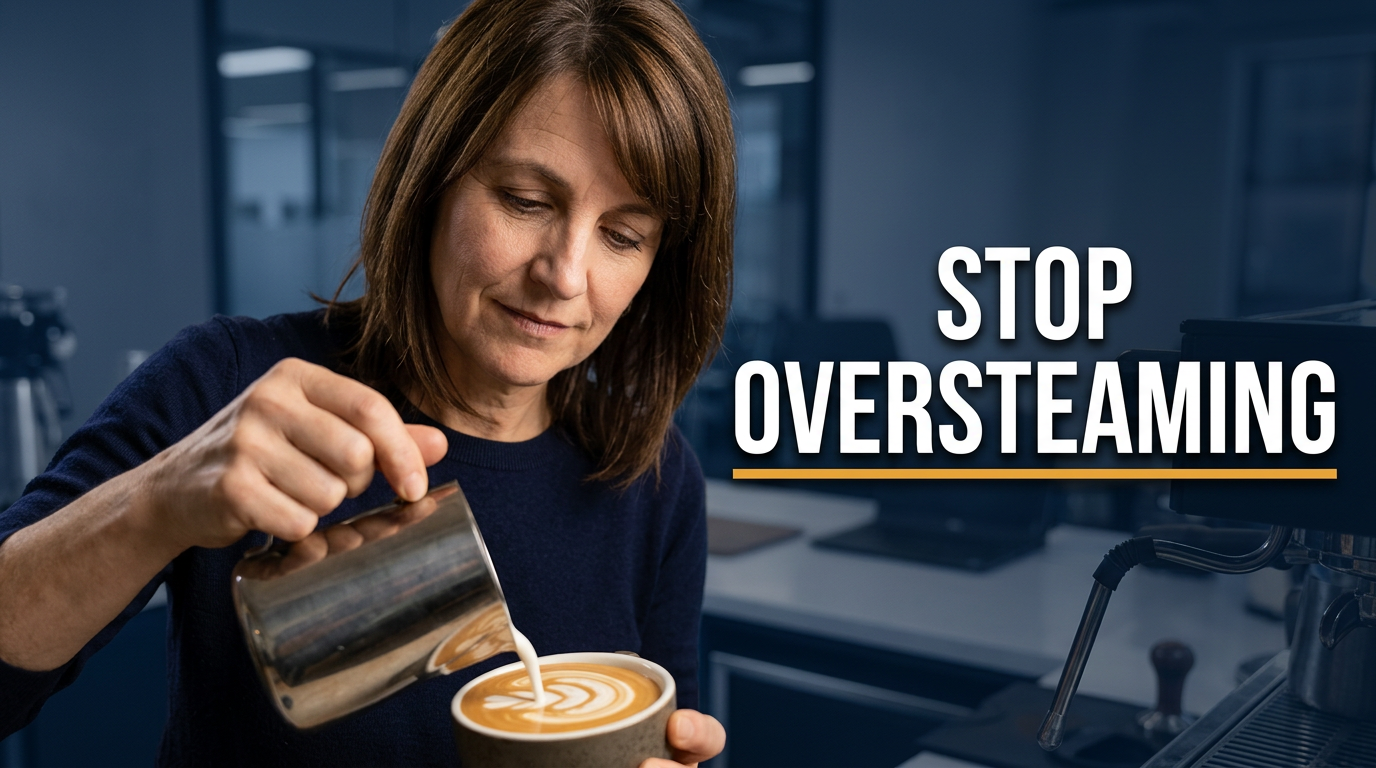
Female barista pouring milk into a latte with a visible rosetta forming

Latte art technique lesson

Make the milk texture and pouring action immediately readable for a skills lesson.

See the visual approach

Female barista shown close to the counter while carefully pouring silky milk from a pitcher into a ceramic cup; a defined rosetta beginning to form in the latte; visible steam wand and softly blurred café workspace in the background; calm expert concentration, clean natural café light, emphasis on hand position, milk texture, and the developing pattern.

Make a thumbnail like this
Coffee creator comparing two grinders with cups of brewed coffee on a kitchen counter

Home grinder comparison

Frame a practical comparison around two machines and the cup they produce.

See the visual approach

Male home coffee creator at a bright kitchen coffee station, positioned between two distinctly different coffee grinders; two matching cups of freshly brewed coffee and a small scatter of beans on the counter; one hand gesturing toward the grinders, engaged evaluative expression; tidy practical setup, crisp daylight, clear emphasis on the two machines and the finished coffee.

Make a thumbnail like this

These examples are starting points. Results vary based on your images, wording, and creative direction.

Coffee content made clearer at a glance

Shape a thumbnail around the question, result, or comparison in your video—without losing the warmth and detail that make coffee content recognizable.

  • Latte art tutorials with a close, readable milk-pour moment
  • Espresso dialing-in videos that spotlight the shot, grinder, or result
  • Home brewing recipes for V60, AeroPress, French press, moka pot, and more
  • Coffee gear reviews featuring the machine, grinder, brewer, or accessory
  • Café vlogs and behind-the-bar workflow videos
  • Bean, roast, and tasting comparisons with clear visual contrast
  • Barista challenges, service rushes, and competition-inspired content
  • Coffee business updates for café owners and roasters

A simple workflow you can reuse

  1. 1

    Start with the coffee moment

    Choose the visual payoff viewers should notice first: a glossy espresso shot, a crisp rosetta, a dramatic extraction, a brewer comparison, or a reaction at the bar.

  2. 2

    Add your source material

    Use your own portrait, coffee photo, café counter image, equipment shot, or product image so the thumbnail stays connected to your channel and video.

  3. 3

    Set the exact wording

    Keep thumbnail text short and specific, such as a technique, verdict, mistake, challenge, or result. Thumbnail.AI can work around the words you provide.

Frequently asked questions

Answers for building a useful, repeatable thumbnail workflow—not just generating one image.

Browse all thumbnail makers
Can I use my own latte art and espresso photos?

Yes. Upload your drink, machine, grinder, café, or product photos as source material. This is especially useful when a specific drink, setup, or roast is central to the video.

What text works well on coffee video thumbnails?

Use a short idea that adds context to the image: a result, a tension point, or a clear comparison. Phrases such as “Fixed My Espresso,” “Milk Texture Matters,” or “Best Grinder?” are easier to scan than a full recipe title.

Should my face be in every barista thumbnail?

Not necessarily. Your face can help build recognition for tutorials, vlogs, reactions, and opinion-led reviews. For a technique close-up or product-focused video, the pour, cup, or equipment may deserve most of the frame instead.

Can Thumbnail.AI make thumbnails for vertical coffee clips too?

Thumbnail.AI is designed around YouTube-style thumbnail creation. You can still use the same visual direction and source imagery to develop a strong coffee visual concept for other channel formats.

How do I make a grinder or espresso machine review look less like a product listing?

Pair the equipment with a real barista interaction, a finished cup, an extraction detail, or a clear visual comparison. This gives the thumbnail a story beyond the product itself.

Make your next coffee thumbnail unmistakable

Bring the shot, pour, setup, or café moment into focus with custom visuals shaped around your channel and your exact direction.

Create a thumbnail in Thumbnail.AI